

Chatting with the Agent
The chat panel is where you interact with the NimbleBrain agent. Type a message, and the agent processes it — calling tools, fetching data, and streaming the response back to you.
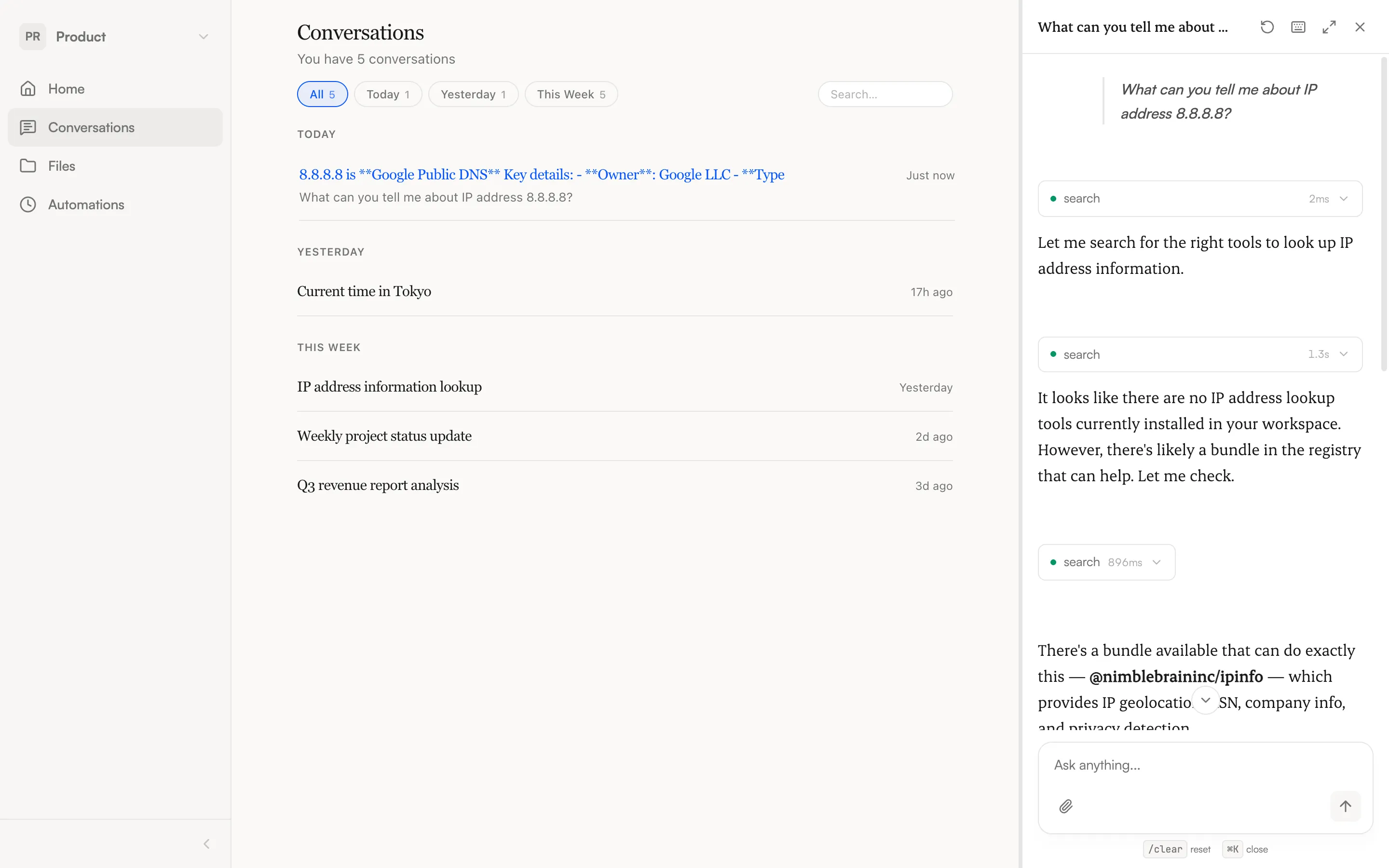
Sending a message
Section titled “Sending a message”Type in the input field at the bottom of the chat panel and press Enter to send. For multi-line messages, use Shift+Enter to add a new line.
You can also:
- Paste images directly from your clipboard into the input
- Drag and drop files onto the input — they appear as chips you can remove before sending
- Click the attachment icon to browse for files
See Attaching Files for supported formats.
What you see during a response
Section titled “What you see during a response”After you send a message, the agent works through your request. You’ll see three states:
- Thinking — The agent is processing your message and deciding what to do
- Streaming — Text is arriving from the model in real time
- Working — A tool call is in progress (e.g., searching your calendar, querying a database)
Tool calls appear inline as expandable cards. Each shows the tool name, which app it belongs to, and whether it succeeded or failed. You can expand a card to see the details of what the tool returned.
App context
Section titled “App context”When you have an app open in the main content area and send a chat message, the agent knows which app you’re focused on. It prioritizes that app’s tools and tailors its response accordingly.
For example, if you have a calendar app open and ask “What’s on my schedule?”, the agent knows to use the calendar tools rather than searching across all installed apps.
Tips for effective prompting
Section titled “Tips for effective prompting”- Be specific. “Search for MCP servers related to Slack” works better than “find me something.”
- Name the app when it matters. If you have multiple apps, say “Use Granola to list my meetings” rather than just “list meetings.”
- Ask the agent to install what you need. The agent can search for and install new apps on its own — just describe what you’re looking for.
- Break complex requests into steps. For multi-part tasks, walk the agent through what you need rather than asking for everything at once.
Chat panel modes
Section titled “Chat panel modes”The chat panel has three modes you can switch between:
| Mode | What it looks like | When to use it |
|---|---|---|
| Closed | Small button in bottom-right corner | When you’re focused on an app and don’t need chat |
| Sidebar | Fixed panel on the right (380px) | Default mode — chat alongside an app |
| Fullscreen | Chat fills the entire content area | For focused, longer conversations |
Use the keyboard shortcuts to switch quickly — see Keyboard Shortcuts.
Starting a new conversation
Section titled “Starting a new conversation”Click the New conversation button at the top of the chat panel to start fresh. Your previous conversation is saved and you can return to it anytime from the conversation history.
Cost transparency
Section titled “Cost transparency”Each assistant response shows a small token count breakdown — how many tokens were used for input and output. This helps you understand usage if your team tracks costs.