

Workspaces
Workspaces keep things organized. Each workspace has its own set of apps, conversations, and team members. Your admin may set up workspaces by team, project, or department — for example, an “Engineering” workspace with developer tools and a “Sales” workspace with CRM integrations.
Switching workspaces
Section titled “Switching workspaces”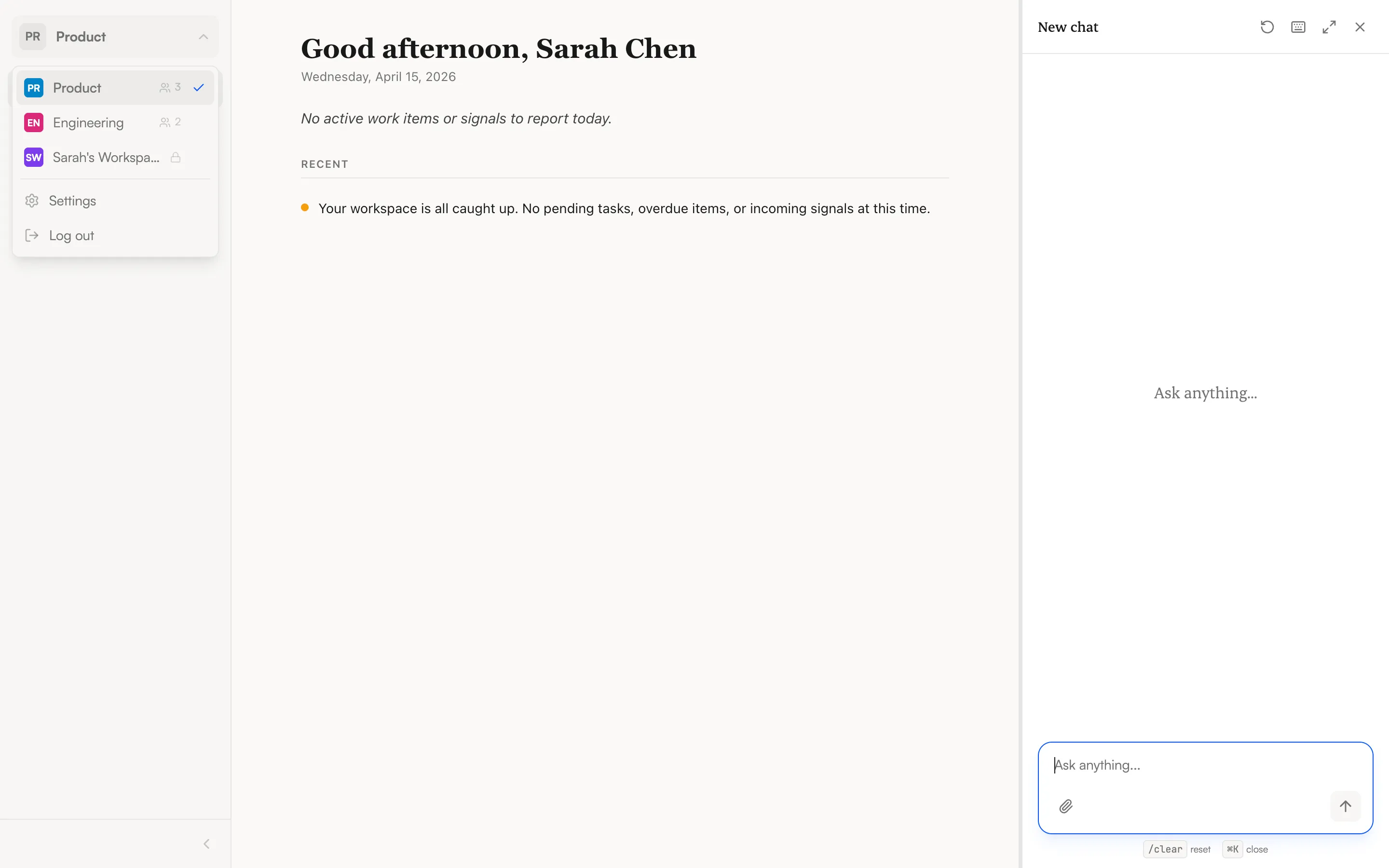
Click the workspace selector at the top of the sidebar. A dropdown shows all workspaces you belong to, with the active one marked. Click a different workspace to switch.
When you switch:
- The sidebar updates to show that workspace’s apps
- Conversations in the chat panel are from that workspace
- The agent only has access to tools installed in the active workspace
What workspaces isolate
Section titled “What workspaces isolate”| Scoped to workspace | Shared across workspaces |
|---|---|
| Installed apps and their tools | Your user account and login |
| Conversations and history | Your profile settings (name, theme, timezone) |
| Team members and roles |
Every workspace member has a role that determines what they can do:
| Role | What you can do |
|---|---|
| Owner | Everything — manage members, apps, and settings. Cannot be removed. |
| Admin | Manage members and apps. Can view all conversations, including private ones. |
| Member | Chat, use tools, and view shared conversations. Cannot manage other members. |
Personal workspaces
Section titled “Personal workspaces”You may have a personal workspace that’s just for you — it shows a lock icon in the workspace selector. This is a private space where you can experiment with apps and conversations without affecting your team.