

Available Integrations
Claude Desktop
Official Claude desktop application
Claude Code
AI-powered coding assistant
Cursor
AI-first code editor
Codex
OpenAI Codex integration
ChatGPT
OpenAI ChatGPT custom actions
LangChain
Python/TypeScript agent framework
Getting Started
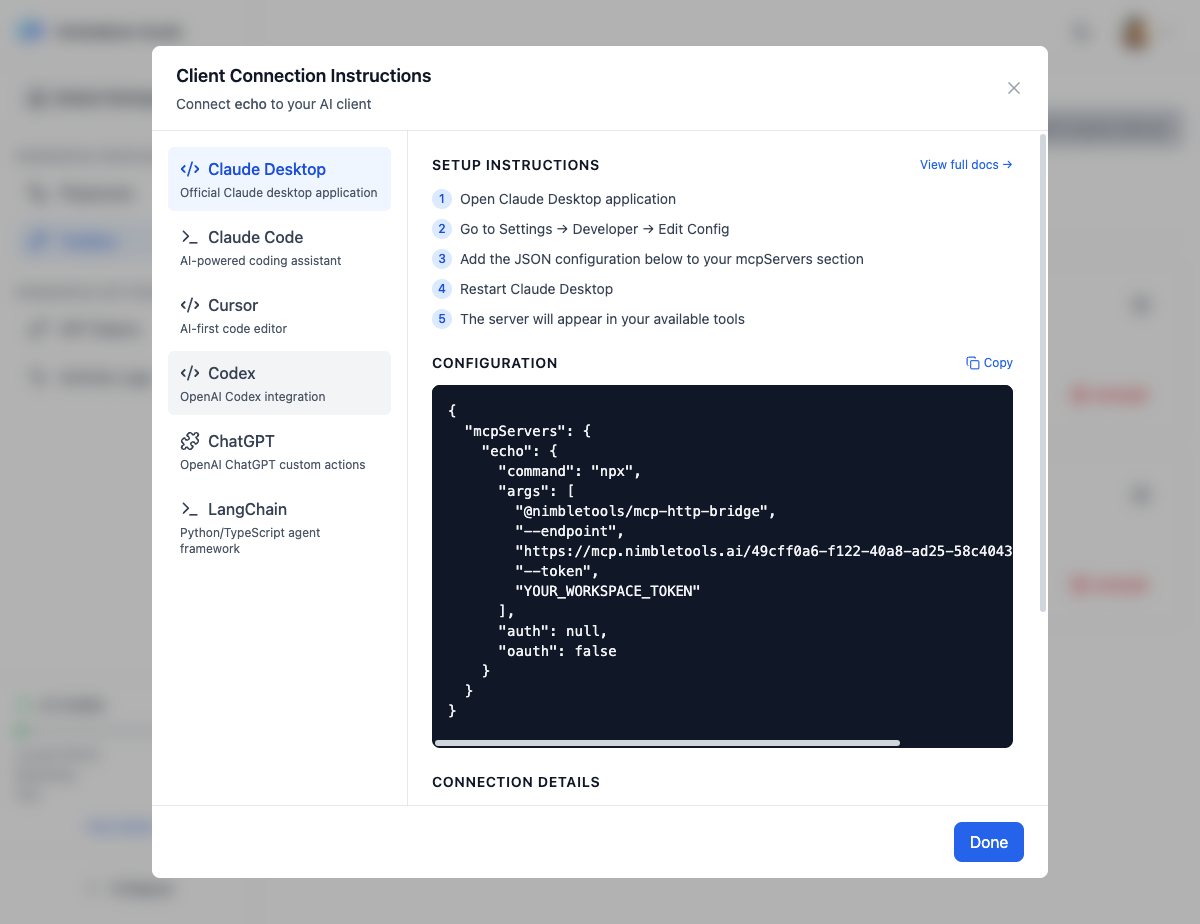
Claude Desktop
Setup Instructions
Go to Settings - Developer - Edit Config
Navigate to the configuration editor in Claude Desktop settings
Add the JSON configuration below to your mcpServers section
Paste the generated configuration into your config file
Configuration Format
Configuration Files
- macOS:
~/Library/Application Support/Claude/claude_desktop_config.json - Windows:
%APPDATA%\Claude\claude_desktop_config.json
Back up your existing config before making changes!
Claude Code
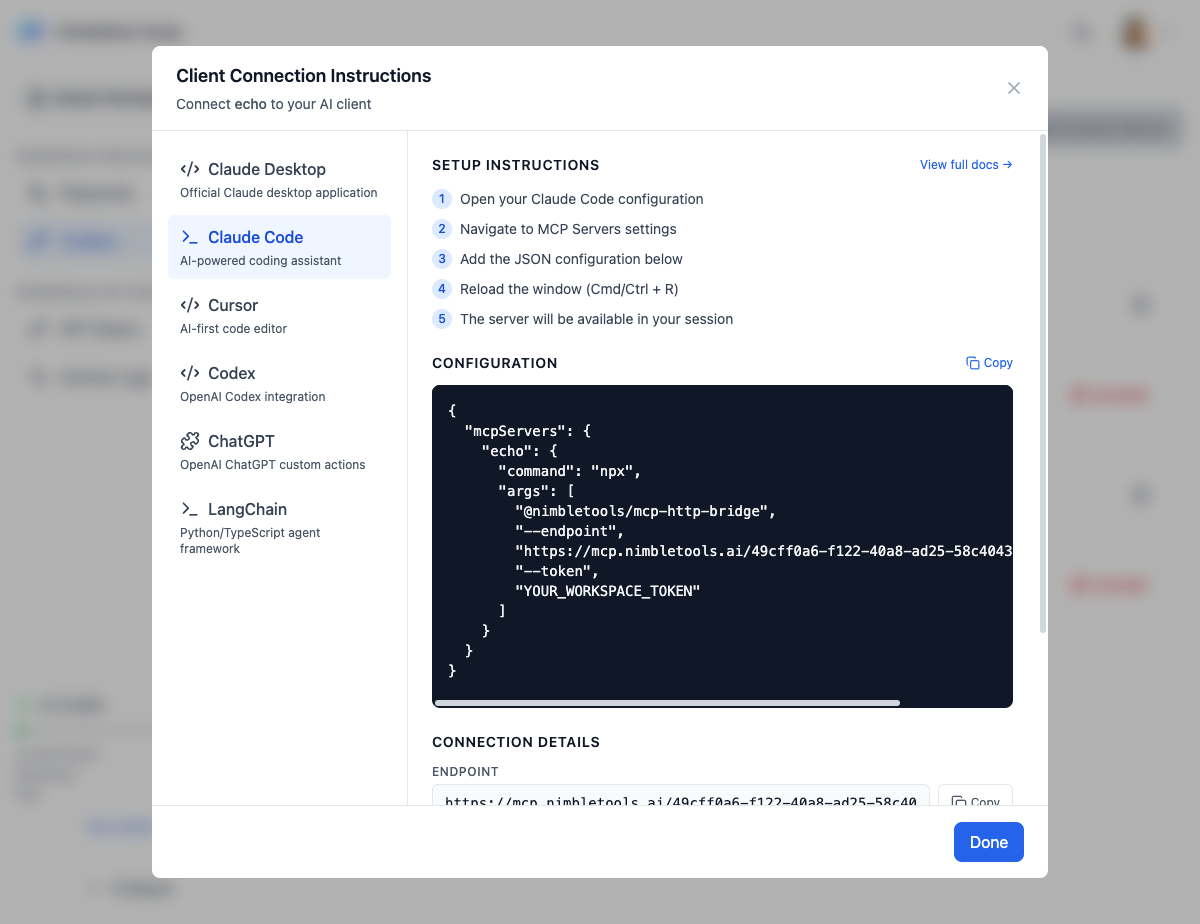
Setup Instructions
Configuration Format
Claude Code uses a simplified configuration without auth fields.
Cursor
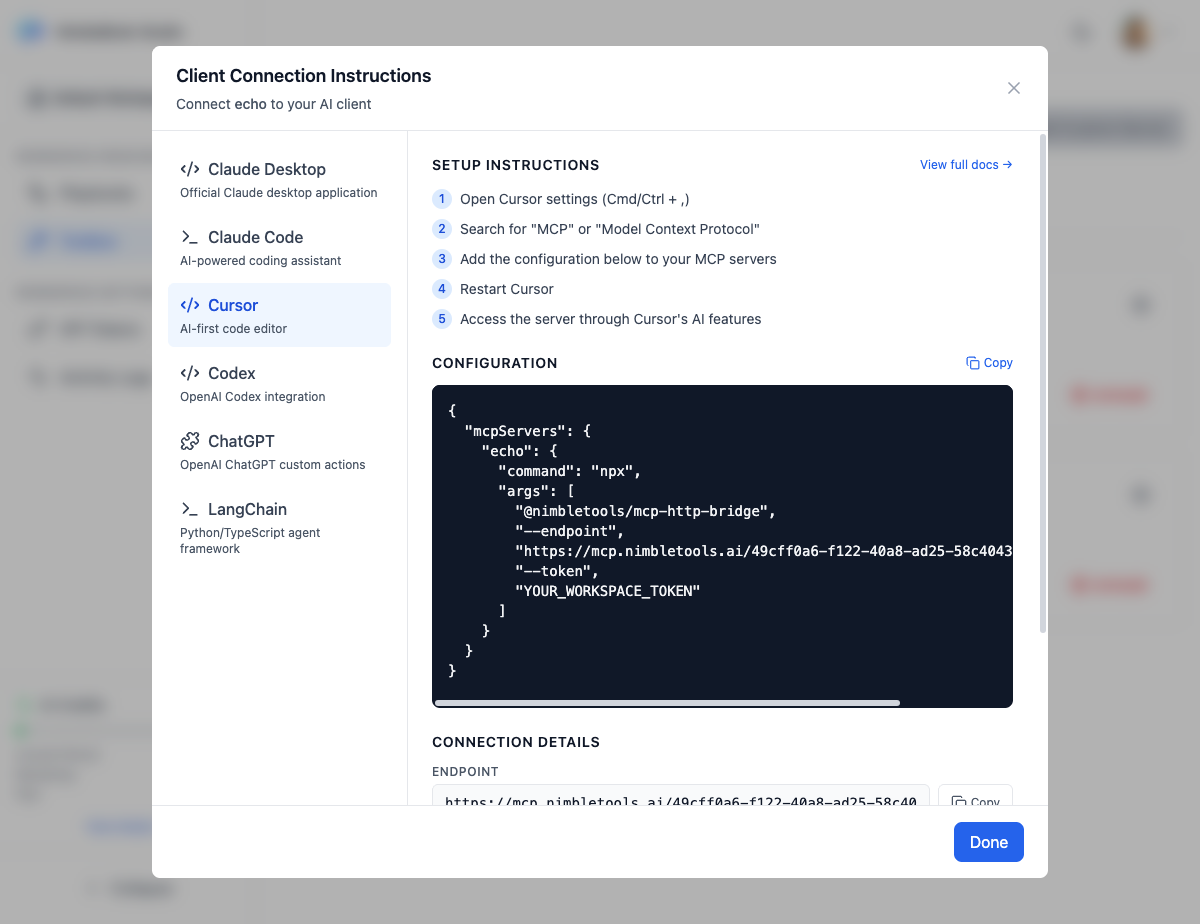
Setup Instructions
Configuration Format
LangChain
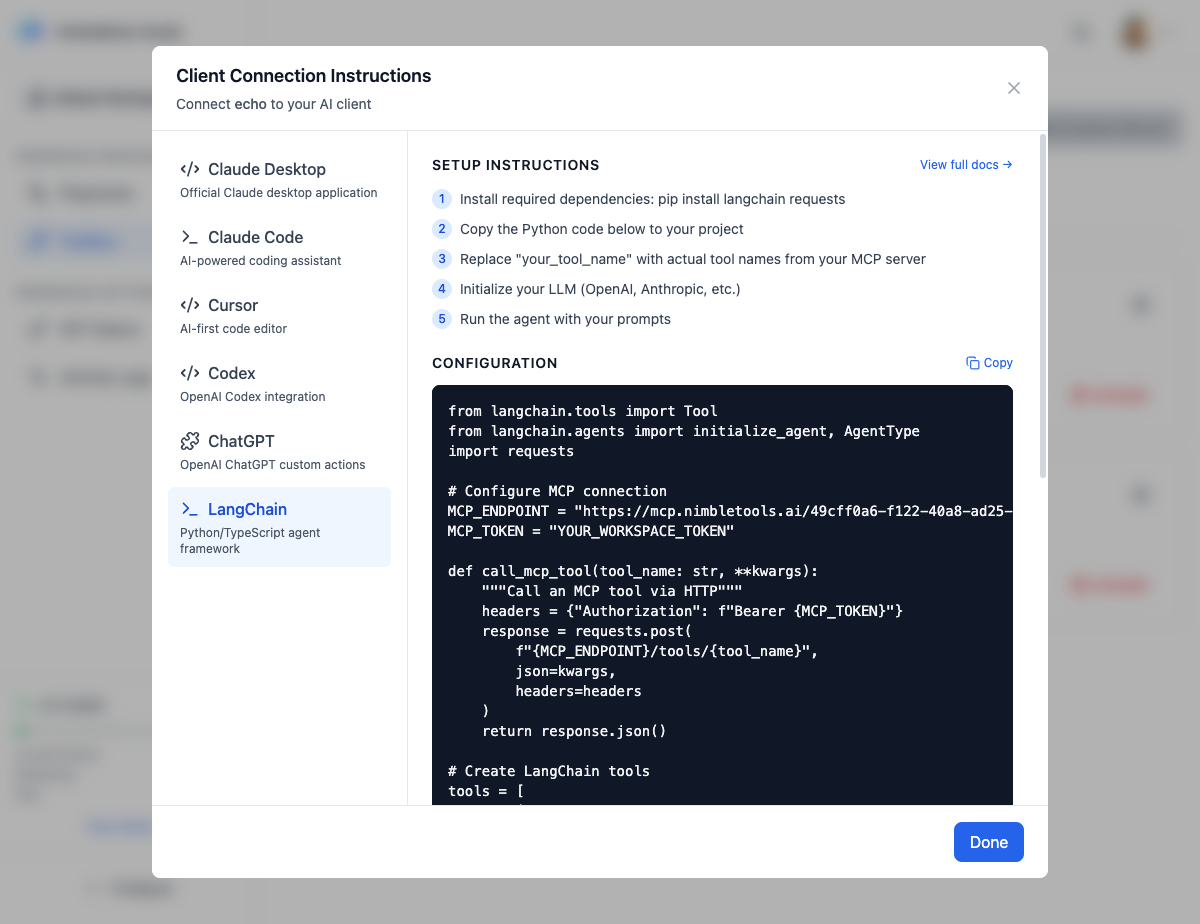
Setup Instructions
Replace tool names with actual names from your MCP server
Update the tool configuration to match your server’s tools
Python Integration Code
Replace
your_tool_name with actual tool names from your MCP server’s documentation.Connection Details
All integrations require two key pieces of information:The MCP server endpoint URL in the format:
https://mcp.nimbletools.dev/{workspace-id}/{server-name}/mcpYour workspace API token. Generate one in API Tokens settings.
Getting Your Access Token
Security Best Practices
Keep Tokens Secure
Keep Tokens Secure
- Never commit tokens to version control
- Don’t share tokens publicly
- Rotate tokens regularly (every 90 days)
- Generate separate tokens for different services
Use Environment Variables
Use Environment Variables
Store tokens in environment variables instead of hardcoding:Reference them in your code:
Limit Token Scope
Limit Token Scope
Create read-only tokens for monitoring and full-access tokens only when needed.
Monitor Token Usage
Monitor Token Usage
Check Activity Logs regularly to monitor token usage and detect unauthorized access.
Troubleshooting
Configuration not working
Configuration not working
Possible causes:
- Invalid JSON syntax
- Token not replaced
- Client not restarted
- Validate JSON with a validator
- Ensure
YOUR_WORKSPACE_TOKENis replaced with actual token - Fully quit and restart the client application
Tools not appearing
Tools not appearing
Possible causes:
- Server not running
- Token expired
- Endpoint URL incorrect
- Check server status in Connections (should show “Running”)
- Generate a new token if expired
- Verify endpoint URL matches the one in Studio
Authentication errors
Authentication errors
Possible causes:
- Token revoked or expired
- Wrong token for workspace
- Token not included in request
- Generate new token in API Tokens settings
- Verify token is for the correct workspace
- Check token is properly set in configuration
Connection timeouts
Connection timeouts
Possible causes:
- Server scaled to zero (cold start)
- Network issues
- Server configuration error
- Wait 5-10 seconds for cold start
- Check server logs in Connections
- Verify server endpoint is accessible
Advanced Integration
Custom HTTP Bridge Options
The@nimbletools/mcp-http-bridge package supports additional options:
Request timeout in milliseconds (default: 30000)
Number of retry attempts (default: 3)
Direct HTTP Integration
You can also integrate directly via HTTP without the bridge:Related Documentation
Connections
Install and manage MCP servers
API Tokens
Generate and manage authentication tokens
Claude Desktop Guide
Detailed Claude Desktop integration guide
Activity Logs
Monitor integration usage and access