

What is Connections?
Connections provides:- Browse Catalog: Explore available integrations from the NimbleBrain registry
- One-Click Install: Install connections instantly without configuration
- Connection Management: View status, logs, and control installed connections
- Integration with Playbooks: All installed connections are available to your playbooks
Connection Tiers
NimbleBrain Studio connections are organized into two tiers:Free Connections
These NimbleBrain-built connections are included with every plan, including Free:NimbleMail
Send emails via AWS SES integration
NimbleNews
News headlines and article search
NimbleSearch
Web search powered by Brave
NimbleWeather
Weather data and forecasts
Premium Connections
All other connections are premium and require a paid subscription. Premium connections include third-party integrations like Gmail, Slack, GitHub, PostgreSQL, and more.Install Limits by Plan:
Limits apply across all workspaces in your account. You can uninstall and reinstall different premium connections as needed.
| Plan | Premium Connection Limit |
|---|---|
| Free | 0 (free connections only) |
| Starter | 5 installed at once |
| Business | 10 installed at once |
| Enterprise | Unlimited |
| Category | Connections |
|---|---|
| Business & Collaboration | Calendly, Gmail, Google Sheets, HubSpot, Slack, Zoom |
| Developer Tools | GitHub, Ref, Echo |
| Data & Analytics | ClickHouse, PostgreSQL, Abstract API, IPInfo |
| Utilities | Tavily, DeepL, PDF.co, Finnhub, OpenWeatherMap |
| Other | National Parks, Reverse Text |
Installed Connections
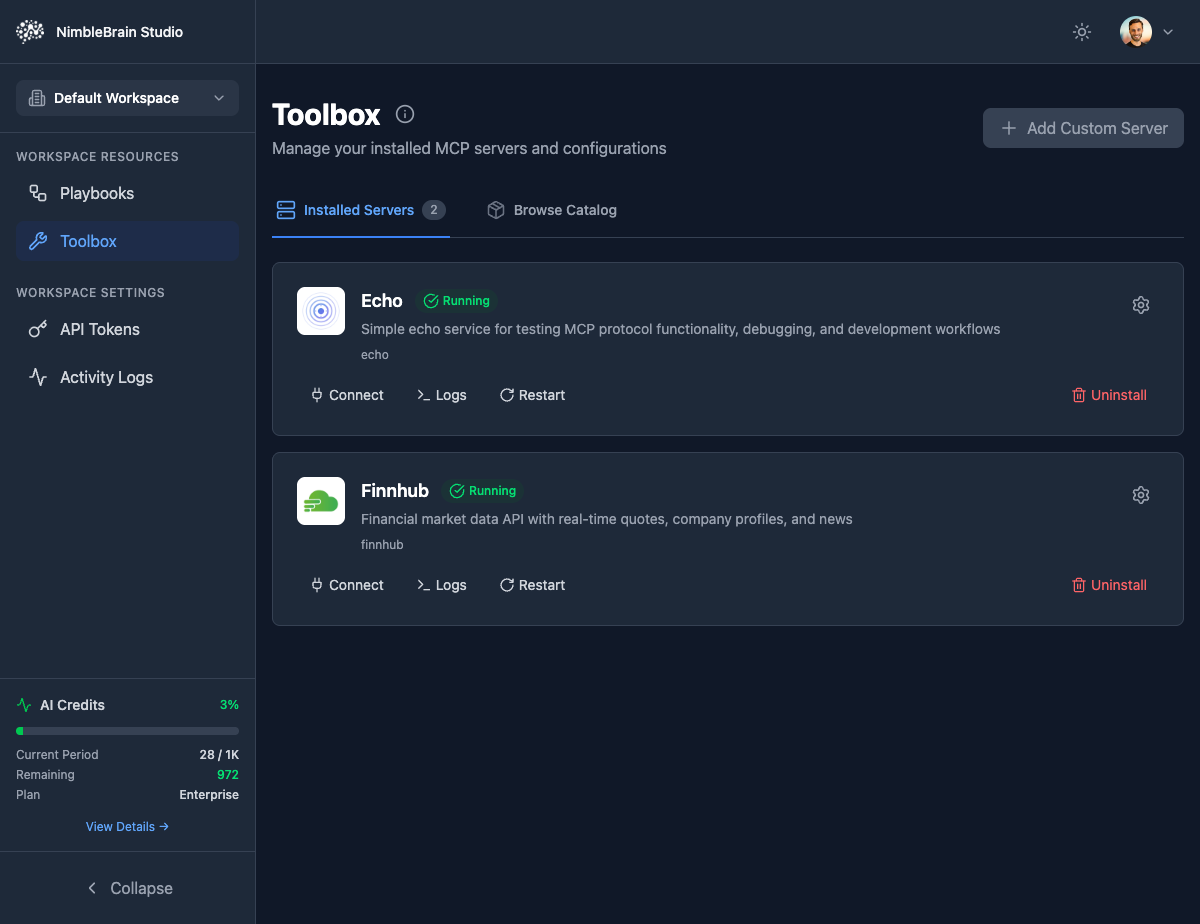
The Installed Connections tab shows all integrations currently running in your workspace:Connection Information
Each connection card displays:- Connection name: The display name of the integration
- Description: What the connection does and which APIs it provides
- Status: Running status indicator (Running)
- Package ID: The registry identifier (e.g.,
ai.nimbletools/echo)
Connection Actions
Connect
Generate connection configuration for Claude Desktop
Logs
View real-time logs from the connection to debug issues
Restart
Restart the connection if it becomes unresponsive
Uninstall
Remove the connection from your workspace
Configure
Manage connection-specific settings and environment variables
Browse Catalog
Filter by Category
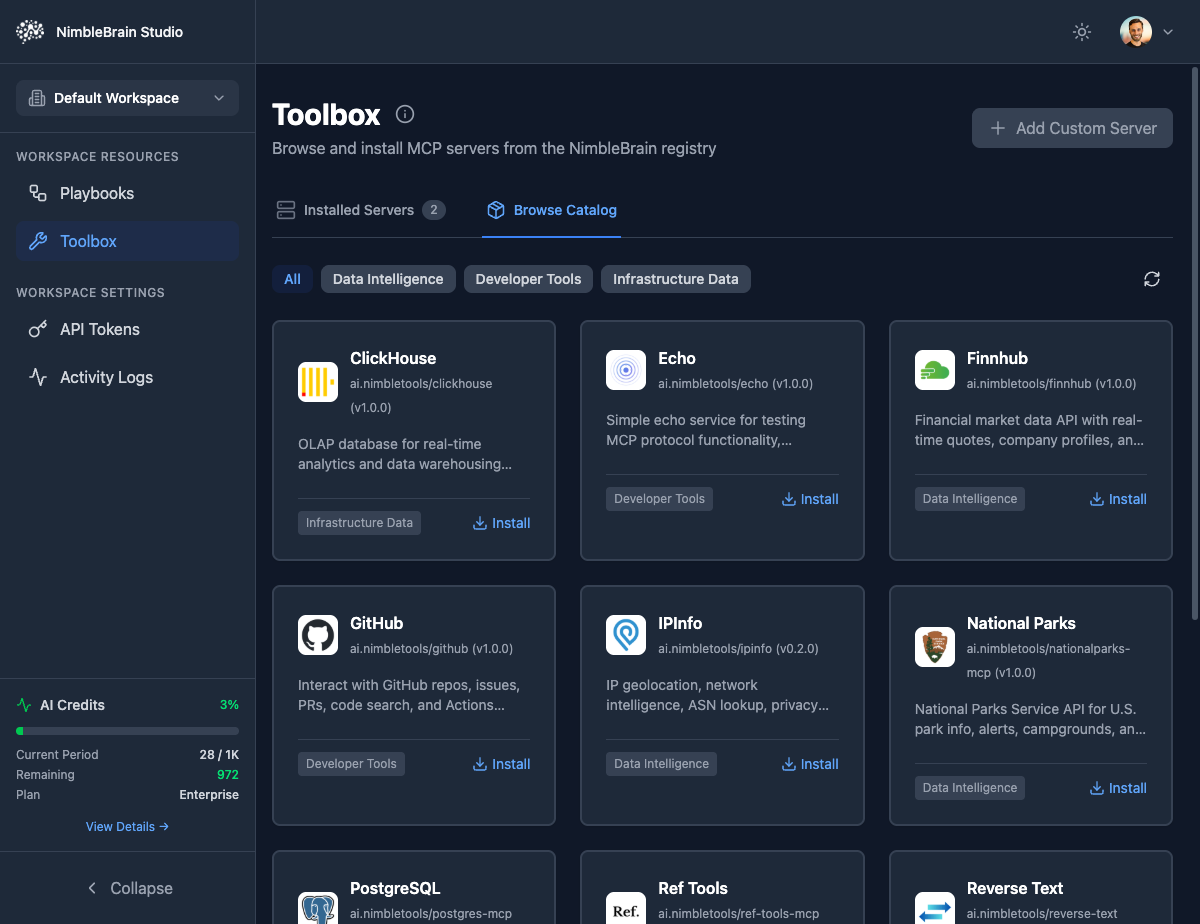
Connections are organized into categories:Business
Gmail, Slack, Calendly, Zoom, HubSpot, Google Sheets
Developer Tools
GitHub, Echo, Ref documentation search
Data & Analytics
PostgreSQL, ClickHouse, Abstract API, IPInfo
Utilities
Tavily, DeepL, PDF.co, Finnhub, OpenWeatherMap
Connection Cards
Each connection in the catalog shows:- Connection icon: Visual identifier
- Connection name: Display name
- Package ID: Full registry identifier with version
- Description: What the connection provides
- Category badge: Which category it belongs to
- Install button: One-click installation
Installing a Connection
Once installed, the connection is immediately available to all playbooks in your workspace!
Available Connections
Here are all the integrations available in the catalog:Development Tools
Echo
Echo
Simple echo service for testing, debugging, and development workflows. No API key required.View Echo Documentation →
GitHub
GitHub
Interact with GitHub repos, issues, PRs, code search, and Actions through natural language. Requires GitHub token.View GitHub Documentation →
Ref
Ref
Token-efficient documentation search for 1000+ sites. 60-95% fewer tokens than alternatives with session-aware de-duplication. Requires Ref API key.View Ref Documentation →
Data Intelligence
Abstract API
Abstract API
Comprehensive API suite for data enrichment, validation, and intelligence services. Email validation, IP geolocation, phone validation, and company data. Requires Abstract API key.View Abstract API Documentation →
IPInfo
IPInfo
IP geolocation, network intelligence, ASN lookup, privacy detection, and WHOIS queries. Requires IPInfo API key.View IPInfo Documentation →
Search and Research
Tavily
Tavily
AI-powered web search optimized for LLMs. Real-time results, content extraction, web crawling, and site mapping. Requires Tavily API key.View Tavily Documentation →
Document Processing
PDF.co
PDF.co
Comprehensive PDF toolkit with 18 tools for conversion, manipulation, security, OCR, barcodes, and watermarks. Credit-based pricing with API key.View PDF.co Documentation →
Databases and Analytics
ClickHouse
ClickHouse
OLAP database for real-time analytics and data warehousing queries. Execute queries, analyze data, and generate insights. Requires ClickHouse connection details.View ClickHouse Documentation →
PostgreSQL
PostgreSQL
Industrial-strength database management with AI-powered natural language queries, intelligent index optimization, and comprehensive health monitoring. Requires database credentials.View PostgreSQL Documentation →
Finance
Finnhub
Finnhub
Real-time stock data, company fundamentals, financial news, and market analysis. Requires Finnhub API key.View Finnhub Documentation →
Language and Translation
DeepL
DeepL
High-quality neural machine translation supporting 30+ languages. Text translation, document translation, and language detection. Requires DeepL API key.View DeepL Documentation →
Business and Collaboration
Calendly
Calendly
Scheduling automation for managing events, invitees, and booking links. Create scheduling links, track no-shows, and set up webhooks. OAuth2 authentication.View Calendly Documentation →
Gmail
Gmail
Email automation for sending, receiving, organizing, and managing messages. Create drafts, manage labels, handle threads, and access contacts. OAuth2 authentication.View Gmail Documentation →
Google Sheets
Google Sheets
Spreadsheet automation for creating, reading, updating, and analyzing data. Execute SQL queries, create charts, and manage worksheets. OAuth2 authentication.View Google Sheets Documentation →
HubSpot
HubSpot
CRM and marketing automation platform integration. Manage contacts, companies, deals, tickets, and marketing campaigns. OAuth2 authentication.View HubSpot Documentation →
Slack
Slack
Team communication and collaboration platform integration. Send messages, manage channels, retrieve conversation history, and automate workflows. OAuth2 authentication.View Slack Documentation →
Zoom
Zoom
Video conferencing platform integration. Schedule meetings, manage participants, retrieve recordings, and configure meeting settings. OAuth2 authentication.View Zoom Documentation →
Travel and Recreation
National Parks
National Parks
Explore US National Parks with detailed information about parks, trails, campgrounds, and visitor centers. U.S. National Parks Service API.
Weather and Climate
OpenWeatherMap
OpenWeatherMap
Current weather, forecasts, historical data, and air quality information for any location worldwide. Requires OpenWeatherMap API key.View OpenWeatherMap Documentation →
Utilities
Reverse Text
Reverse Text
Text manipulation service with reverse and analysis tools for processing and transforming text data. Zero configuration, no API key required.
Connection Configuration
Some connections require configuration before they can be used:API Keys and Secrets
Connections that access external APIs need authentication:- Click the Configure button (gear icon) on the connection card
- Enter required API keys or credentials
- Save the configuration
- Restart the connection if prompted
Security: API keys are encrypted and stored securely. They are never exposed in logs or visible to other workspace members.
Environment Variables
Some connections accept optional configuration via environment variables:- Connection timeouts
- Rate limiting
- Feature flags
- Custom endpoints
Connection Logs
View real-time logs to debug issues:Connecting to Claude Desktop
Generate a connection configuration for any installed integration:Open Claude Config
Open your Claude Desktop configuration file:
- macOS:
~/Library/Application Support/Claude/claude_desktop_config.json - Windows:
%APPDATA%\Claude\claude_desktop_config.json
The connection config includes your workspace API token for authentication. Keep it secure!
Connection Status
Running
Connection is healthy and responding to requests
Error
Connection failed to start or is not responding
Installing
Connection is being installed or restarted
Stopped
Connection is installed but not running
Uninstalling a Connection
Warning: Uninstalling a connection will break any playbooks that depend on it. Make sure no playbooks are using the connection before uninstalling.
Troubleshooting
Connection won't install
Connection won't install
- Check that you have sufficient workspace resources
- Try refreshing the catalog
- Check the Activity Logs for error details
Connection shows error status
Connection shows error status
- Click “Logs” to see error messages
- Check if API keys are configured correctly
- Try restarting the connection
Playbook can't find the connection
Playbook can't find the connection
- Verify the connection shows “Running” status
- Try restarting the connection
- Check that the connection is installed in the correct workspace
API key errors
API key errors
- Verify the API key is valid
- Check that the key has the necessary permissions
- Make sure you saved the configuration after entering the key
Best Practices
Install What You Need
Only install connections that your playbooks will use
Secure API Keys
Never share API keys or workspace tokens publicly
Monitor Logs
Check logs when debugging playbook issues
Test Connections
Verify connections work before using them in production playbooks